What Is a Chart of Accounts in Excel and How to Create One?

A Chart of Accounts (COA) in Excel is an essential financial tool that helps businesses efficiently organize and manage their accounting data. It groups financial transactions into structured categories such as Assets, Liabilities, Equity, Revenue, and Expenses, making financial tracking and reporting much easier. Creating a COA in Excel involves setting up a detailed table that includes account numbers, account names, and classifications. Understanding how to design and maintain this structure properly can significantly strengthen your financial organization and decision-making. Let’s break down the core elements and steps for building an effective COA.
Key Takeaways
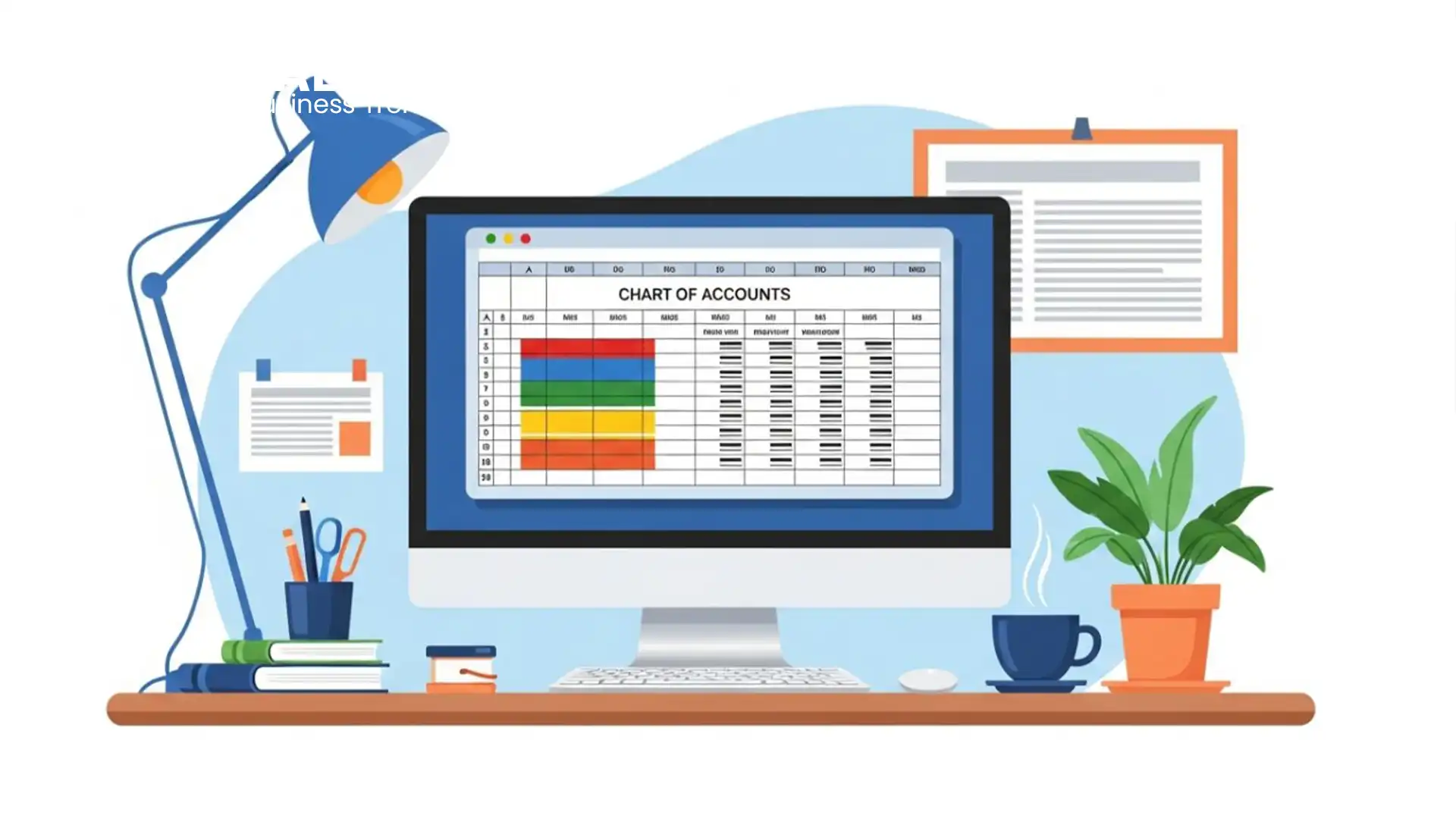
- A Chart of Accounts (COA) is a structured list that categorizes all financial accounts within a business.
- It typically consists of five main categories: Assets, Liabilities, Equity, Revenue, and Expenses.
- Creating a COA in Excel requires setting up a table with account numbers, names, types, and descriptions.
- A logical numbering system helps organize accounts and simplifies financial tracking.
- Regular updates to your COA ensure accurate reporting as your business evolves.
Understanding the Chart of Accounts
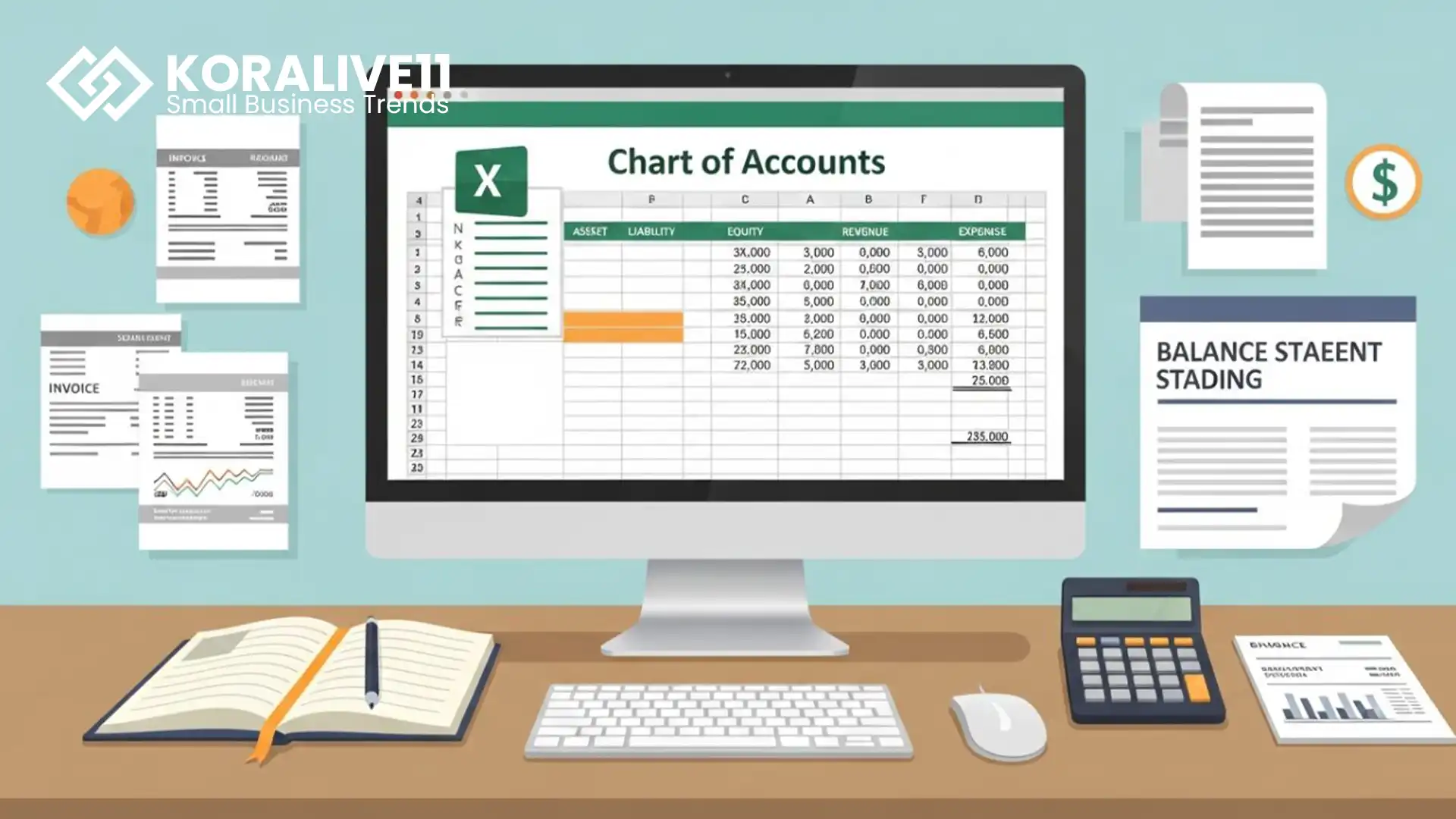
Understanding the purpose of a Chart of Accounts (COA) is fundamental to managing business finances effectively. A COA serves as a master list of all financial accounts, offering a clear snapshot of your company’s economic structure.
Using Excel to create a chart of accounts allows you to organize financial data in a flexible, customizable format. A standard chart of accounts Excel layout separates accounts into assets, liabilities, equity, revenue, and expenses. Referring to a sample chart of accounts Excel file can help guide your setup and ensure consistency.
Each account should be assigned a unique numerical code to allow quick identification and accurate data entry. This structured approach makes it easier to analyze income, track expenses, generate reports, and comply with accounting and tax requirements.
Key Components of a Chart of Accounts
When building a Chart of Accounts, understanding the main account categories is critical for accurate financial organization.
You will typically classify accounts into assets, liabilities, equity, revenue, and expenses. Each category plays a specific role in measuring financial performance and position.
In addition, a well-planned numbering system supports clear organization and efficient reporting by indicating how accounts relate to one another.
Account Types Overview
An adequately designed Chart of Accounts (COA) organizes financial information into five primary categories:
- Assets: Items your business owns, such as cash, inventory, and equipment.
- Liabilities: Financial obligations like loans, credit balances, and accounts payable.
- Equity: The owner’s interest in the business, including capital contributions and retained earnings.
- Revenue: Income generated from selling goods or providing services.
- Expenses: Costs incurred to operate the business, such as rent, utilities, and payroll.
When using a chart of accounts template in Excel, clearly separating these categories ensures accurate tracking and reporting of financial activity.
Numbering System Importance
A consistent and logical numbering system is a key element of an effective Chart of Accounts. Each account is assigned a unique number, making data entry, tracking, and reporting more efficient.
Typically, the first digit represents the main account category, while additional digits identify sub-accounts. This hierarchical structure improves clarity and reduces errors in financial statements.
A well-designed numbering system also allows room for expansion. Leaving gaps between account numbers makes it easier to add new accounts in the future without disrupting the overall structure. Consistent numbering supports standard accounting practices and improves financial oversight across departments.
Steps to Create Your Chart of Accounts

Creating a Chart of Accounts in Excel requires careful planning and organization. Follow these steps to build an effective COA:
- Download an Excel COA template to provide a structured starting point.
- Set up a table with columns for account number, account name, account type, and descriptions.
- Assign unique account numbers to each entry using a logical numbering system.
- Group accounts into major categories such as assets, liabilities, equity, revenue, and expenses.
- Add clear descriptions for each account to ensure consistent use across your organization.
Review and update your Chart of Accounts regularly to reflect changes in operations, ensuring it remains accurate and relevant.
Utilizing a Chart of Accounts Template in Excel
Using a pre-built Chart of Accounts template in Excel can streamline your setup process. Most templates include columns for account numbers, names, and classifications, helping you systematically organize accounts.
Templates guide naming conventions and account structure, reducing setup errors. Each account should still be customized to reflect your specific business needs while adhering to standard accounting principles.
Excel templates are flexible, allowing you to modify account categories, add new entries, and adapt the structure as your business grows.
Importing Your Chart of Accounts Into QuickBooks
Once your Chart of Accounts is complete in Excel, you can import it into QuickBooks to integrate it with your accounting system.
Start by logging in to QuickBooks, then navigate to the gear icon and select Import Data. Upload your Excel or CSV file nd carefully match each column to the corresponding QuickBooks fields.
Before completing the import, review the data to ensure accuracy. Confirm that account types are correctly assigned, as QuickBooks relies on proper classification for financial reporting. Once verified, complete the import to finalize the process.
Advantages of a Well-Structured Chart of Accounts
A well-organized Chart of Accounts offers numerous benefits for financial management. It improves financial reporting accuracy by clearly categorizing all transactions.
With a structured COA, you can track income and expenses more effectively, making budgeting and forecasting easier. It also helps ensure compliance with accounting standards and reduces the risk of reporting errors.
A detailed COA allows you to analyze performance across different areas of the business, saving time and improving decision-making. Overall, it enhances clarity, efficiency, and control over your financial data.
Frequently Asked Questions
How to Create a Chart of Accounts in Excel?
To create a Chart of Accounts in Excel, start by building a table with columns for account number, account name, and account type. Use a logical numbering system where each category has a defined range. Add descriptions for clarity and update the chart regularly to reflect changes in your business.
What Is a Chart of Accounts and How to Create One?
A Chart of Accounts is a structured list of all financial accounts used to record business transactions. It includes assets, liabilities, equity, revenue, and expenses. To create one, design a table with unique account numbers and names, organize accounts logically, and maintain it consistently for accurate financial reporting.
How to Make a Chart in Excel Step by Step?
To create a chart in Excel, select your data range, click the Insert tab, and choose a chart type, such as column, bar, or pie. Customize the chart by adding titles, legends, and labels using the Chart Design tools. Adjust formatting as needed for clarity.
How to Create an Account in Excel?
Open a new Excel spreadsheet and label columns such as “Account Number,” “Account Name,” and “Account Type.” Assign each account a unique number following a logical sequence. Update the list regularly to maintain accuracy and support effective financial tracking.
Conclusion
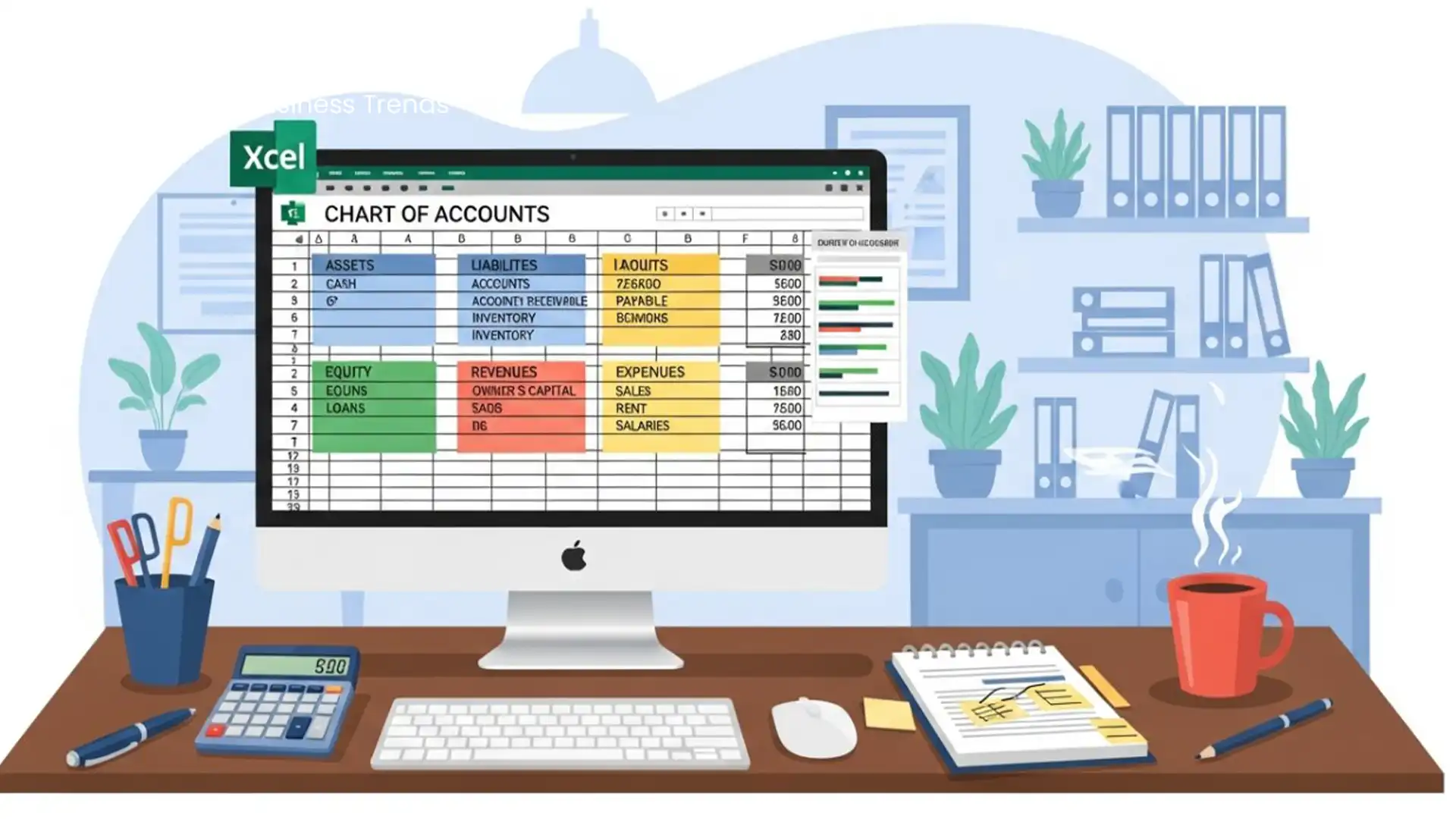
An adequately designed Chart of Accounts in Excel is a cornerstone of effective financial management. By organizing financial data into clear categories, you enhance reporting accuracy, compliance, and decision-making. Following structured steps, using templates, and integrating with accounting software like QuickBooks simplifies the process. Regular updates ensure your COA evolves alongside your business, supporting long-term financial clarity and control.